LMBox Offline AI

Download a model. Chat offline.

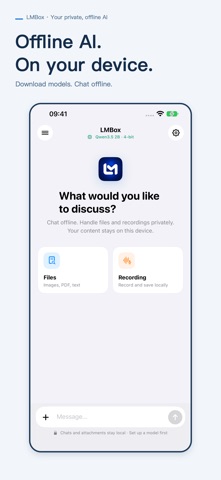
Run language models on your iPhone or iPad. Chat, transcribe recordings, extract text, or ask questions about a PDF. LMBox processes those tasks on your device after you download the required models and resources.

For iPhone and iPad. The interface supports English, Simplified Chinese, and Traditional Chinese.

LMBox English chat screen with shortcuts for files and voice recordings
LMBox App Store screenshot

What you can do

Chat with a local model

Pick a model that fits your device, ask a question or draft text, and return to saved conversations later.

Transcribe a recording

Record a voice note, turn it into text on your device, and ask follow-up questions in the same conversation.

Ask a PDF a question

Open a PDF and ask about a specific detail. Look at the extracted passages and page references to check the answer against the source.

Getting started

  1. Connect to the internet and download a chat model that fits your device. Download speech resources if you plan to transcribe recordings.
  2. Once those downloads finish, open a chat, record audio, or add a PDF.
  3. Check generated answers and recognized text against the original material.

Common questions

Can I use LMBox offline on the first launch?
Download the required models and resources first. Once they are ready, chat, transcription, text recognition, and PDF questions can run offline.
Does LMBox send my chats or files to cloud AI?
LMBox processes those features on your device without sending chats, recordings, photos, or files to a cloud AI service. Model downloads need a network connection. See the privacy policy for how local storage and device backups work.
Can LMBox describe what is in a photo?
LMBox can read text in photos. General scene understanding is outside its current photo features.